To debug any Spark Application for issues, it’s crucial to be able to understand the details shown in Spark UI, especially in real production scenarios where Spark Applications can get highly complex because of multiple joins and transformations.
Main Issues when debugging from Spark UI
- Understanding what all the Jobs within the Jobs Tab of Spark UI are part of a particular join.
- Not just debugging, but while optimizing a Spark Application, it requires looking into Spark UI and identifying which particular job within the Spark Application is slow or causing spills that can be improved.
- While there are multiple ways to identify it by analyzing the Stages/SQL tab and the DAG representation, it’s complex and time-consuming to point things out.
Improving Readability with setJobGroup
SparkContext has a method called setJobGroup that can help with improving the Spark UI readability.
sc.setJobGroup() is a method on the SparkContext used to group multiple Spark jobs together logically. This is particularly useful for organizing, monitoring, and managing complex applications where a single task might trigger several Spark actions.
setJobGroup has 3 parameters:
groupId: A string that serves as a unique identifier for the job group.description: A string that provides a human-readable description, which will be displayed in the Spark UI.interruptOnCancel (default = False): A boolean that, if set toTrue, will attempt to interrupt the executor threads when the job group is canceled. This can help stop tasks more quickly, but is disabled by default due to potential issues with certain file systems like HDFS.
We will be focusing on the first 2 parameters to improve the Spark UI readability.
Example of how to use setJobGroup
from pyspark.sql import SparkSession
from pyspark.sql.functions import rand, lit, array, rand, when, col

# Creating spark session to read/write Iceberg Tables
DW_PATH='/warehouse'
SPARK_VERSION='3.5'
ICEBERG_VERSION='1.9.2'

spark = SparkSession.builder \
			.master("local[4]") \
			.appName("iceberg-poc") \
			.config('spark.jars.packages', f'org.apache.iceberg:iceberg-spark-runtime-{SPARK_VERSION}_2.12:{ICEBERG_VERSION},org.apache.spark:spark-avro_2.12:3.5.0')\
.config('spark.sql.extensions','org.apache.iceberg.spark.extensions.IcebergSparkSessionExtensions')\
.config('spark.sql.catalog.local','org.apache.iceberg.spark.SparkCatalog') \
.config('spark.sql.catalog.local.type','hadoop') \
.config('spark.sql.catalog.local.warehouse',DW_PATH) \
.getOrCreate()

# Initializing Spark Context
sc = spark.sparkContext

TGT_TBL = "local.db.v3_emp_bv_details"

# Setting a Job Group for table creation
sc.setJobGroup("generate_populate_table", "Generating Data and Writing into Iceberg v3 table")

t1 = spark.range(30000).withColumn("year",
			when(col("id") <= 10000, lit(2023))\
			.when(col("id").between(10001, 15000), lit(2024))\
			.otherwise(lit(2025))
)

t1 = t1.withColumn("business_vertical", array(
			lit("Retail"),
			lit("SME"),
			lit("Cor"),
			lit("Analytics")
			).getItem((rand()*4).cast("int")))\
			.withColumn("is_updated", lit(False))

t1.coalesce(1).writeTo(TGT_TBL).partitionedBy('year').using('iceberg')\
.tableProperty('format-version','3')\
.tableProperty('write.delete.mode','merge-on-read')\
.tableProperty('write.update.mode','merge-on-read')\
.tableProperty('write.merge.mode','merge-on-read')\
.create()

# Setting another Job Group for Updating the table
sc.setJobGroup("update_dep_dataengg", "Updating all the employee with first 100 ids to DE dept")

spark.sql(f"UPDATE {TGT_TBL} set business_vertical = 'DataEngineering' where id <= 100")

# Setting another Job Group for Metadata Analysis
sc.setJobGroup("metadata_analysis", "Analyzing metadata tables to understand Deletion Vectors")

spark.table(f"{TGT_TBL}.files").select("file_format", "file_path").show()
spark.table(f"{TGT_TBL}.files").select("file_format", "file_path").show(truncate=False)

# CLEARING set job group
sc.setJobGroup(None, None)

# Looking into snapshots table
spark.table(f"{TGT_TBL}.snapshots").show(truncate=False)
Here’s what Spark UI looks like after running this Spark Application:
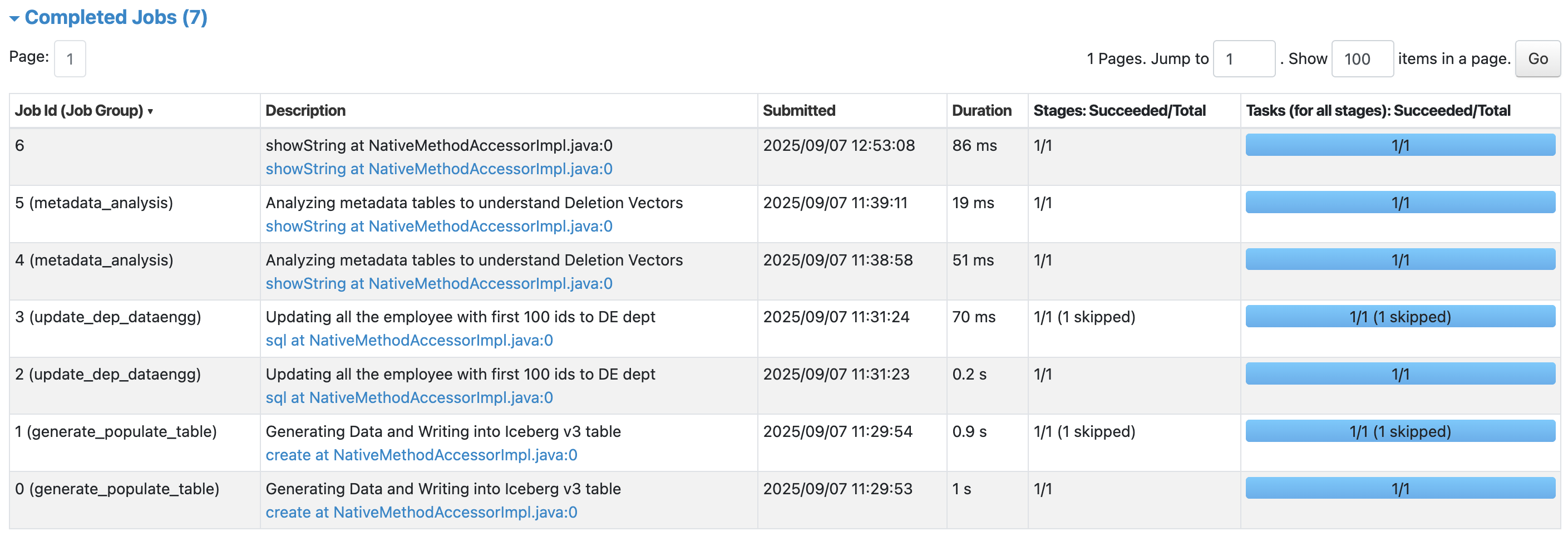
Caution
If you want to set Job Group for a particular section in code, make sure to CLEAR THE JOB GROUP using
sc.setJobGroup(None, None), else all the further Job Groups and descriptions will be marked as the last set job group.